
Report Explorer Settings
There are several Report Preview functions available including one up or two up page output, mouse scrolling control, and a continuous scrolling option that allows you to quickly scroll through an entire report without having to page down or page up.
- To configure these options, on the ribbon bar, click on Settings and click the General Node.
- In this section there are two options;
- Default sort order for reports
and - Reports - show ‘Continuous Scrolling’ option
- Default sort order for reports
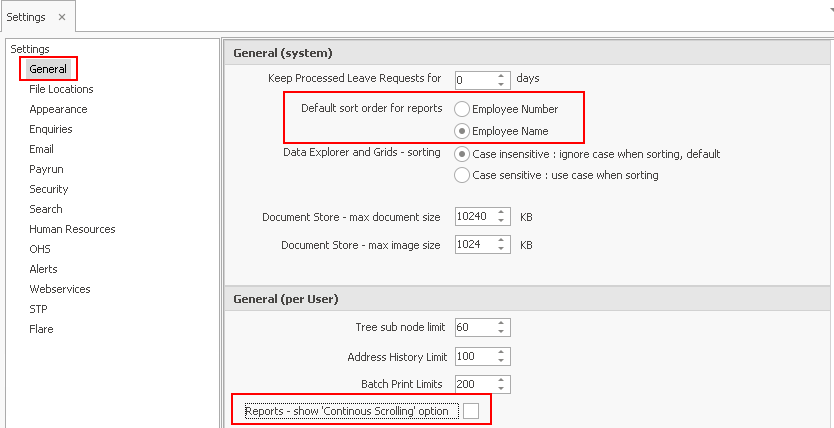
Default Sort Order
The default sort order is by Employee Number. If preferred you can select the Employee Name option, to change the sort order to for the current report.
You can change the default sort from employee number to employee name (for all of your employee-based reports).
Reports - show Continuous Scrolling Option
This option controls the ‘Continuous scrolling’ option of the report preview screen. This option is switched on by default.
Activating this option provides some additional options on the Print Preview screen. Your choices are;
- Single Page (default setting)

- Single Page Continuous Scroll

- Two Up

- Two Up Continuous Scroll

The Single Page and Two Up options require you to use the page navigation keys to move from one page to the next. 
The Single Page Continuous Scroll and Two Up Continuous Scroll flow from one page to the next continuously via your mouse wheel or down arrow keys, while still allowing you to jump from page to page in the same manner as the Single Page and Two Up options if you wish.
Note: The ‘Continuous scrolling’ options perform an additional ‘Drawing page’ phase when rendering the report. This is done in blocks of 100 pages and does not add significantly to the time taken to render a report.
Additional Options When Saving to Excel
When saving a report to Excel you have two options, Excel (Report) and Excel (Data).
The Excel (Report) option attempts (as closely as possible), to create a replica of the Ready Pay report (what you see is what you get) in an Excel spreadsheet and includes page headers, footers, captions, spacing, etc.
The Excel (Data) option excludes the page headers, footers, captions etc., and only outputs the core data from the Ready Pay report.
Some reports will not have an Excel (Data) configuration defined and therefore will export a blank Excel spreadsheet.
Typically these are reports which have multiple sections or lines of information per record, and these do not lend themselves to the “Rows and columns” nature of Excel and CSV (comma separated values) files.
- Examples of reports which will not have an Excel (Data) configuration are all of the Detailed versions of Payrun, Earnings History and Costing reports.
- Examples of reports which will have an Excel (Data) configuration are the Summary versions of these same reports.